n8n
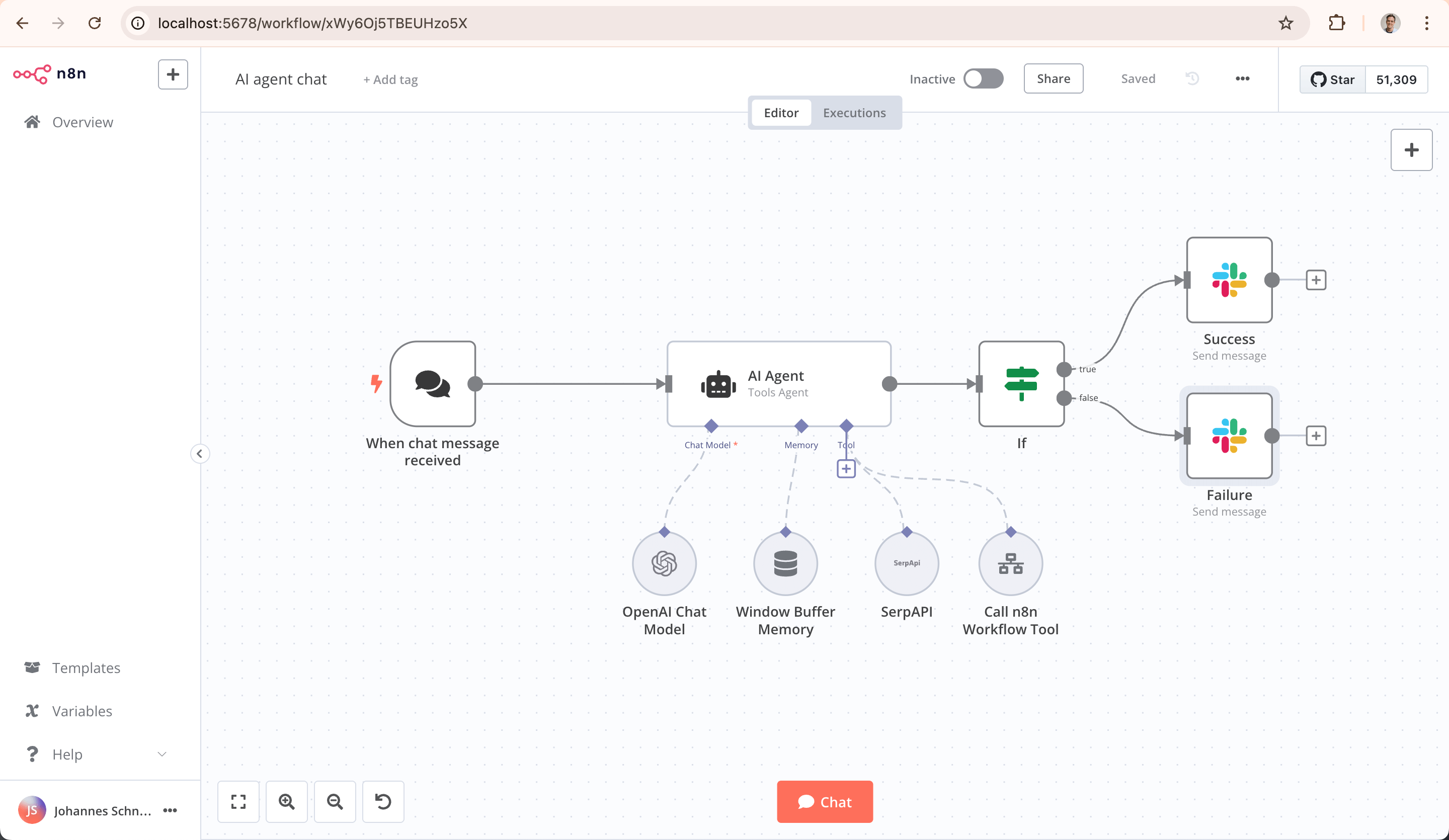
This guide demonstrates how to install, configure, and use n8n on NVIDIA Jetson Orin devices. n8n is a powerful and extensible workflow automation tool that supports hundreds of built-in integrations. With minimal resource demands and full Docker support, it runs efficiently on Jetson devices.
1. Overview
- Visual low-code workflow builder
- Supports 300+ integrations (APIs, webhooks, databases, etc.)
- Docker-compatible for fast deployment
- Local-first automation with privacy focus
- Full ARM64 architecture support (Jetson)
This guide covers:
- Docker-based installation
- Persistent configuration
- Service management
- Remote access setup
- Uninstallation and troubleshooting
2. Requirements
Hardware
| Component | Minimum Requirement |
|---|---|
| Device | Jetson Orin Nano / NX |
| Memory | ≥ 4GB (8GB recommended) |
| Storage | ≥ 2GB available space |
Software
- Ubuntu 20.04 / 22.04 (Jetson)
- Docker & Docker Compose
- Node.js(optional,for source-based deployment)
3. Installation
Method A: Using npx (requires Node.js):
# Download and install fnm:
curl -o- https://fnm.vercel.app/install | bash

# Download and install Node.js:
fnm install 22

# Verify the Node.js version:
node -v # Should print "v22.14.0".

# Verify npm version:
npm -v # Should print "10.9.2".
mkdir -p ~/.n8n
sudo chown -R $USER:$USER ~/.n8n
npx n8n
✅ The official image supports ARM64, so it runs natively on Jetson devices.
Method B: Using Docker :
docker volume create n8n_data
docker run -it --rm --name n8n -p 5678:5678 -e N8N_SECURE_COOKIE=false -v n8n_data:/home/node/.n8n docker.n8n.io/n8nio/n8n
4. Accessing the Web Interface
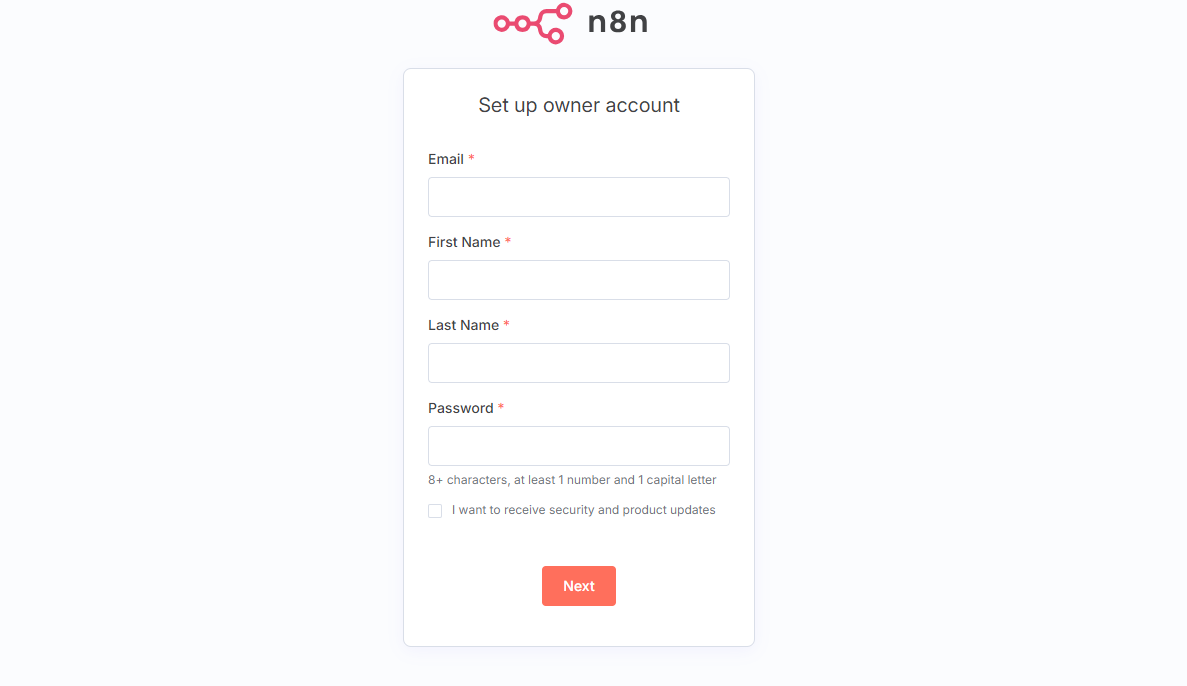
Once n8n is running, open your browser and visit:
http://<Jetson-IP>:5678
5. Common Commands
| Operation | Command |
|---|---|
| Start n8n | docker compose up -d |
| View logs | docker logs n8n |
| Stop service | docker compose down |
| Restart service | docker compose restart |
| n8n Update | docker pull n8nio/n8n |
6. Enable Remote Access (Optional)
To access n8n from other devices:
- Ensure Jetson’s firewall allows TCP port
5678. - Set the following environment variables in your Compose file or container:
N8N_HOST=0.0.0.0
N8N_PORT=5678
WEBHOOK_TUNNEL_URL=https://yourdomain.com
- For HTTPS access, it is recommended to set up a reverse proxy (e.g., Nginx + Let's Encrypt).
7. Troubleshooting
| Issue | Solution |
|---|---|
| Cannot access Web UI | Check if port 5678 is open on the Jetson device |
| Workflows not saved | Ensure ~/.n8n or the mounted volume is writable |
| Container crashes | Run docker logs n8n to view detailed logs |
| Require HTTPS access | Configure Nginx reverse proxy with SSL certificate |
8. Appendix
Default File Paths
| Purpose | Path |
|---|---|
| n8n configuration/data | ~/.n8n or ./n8n_data/ |
| Docker project directory | ~/n8n |
| Web UI address | http://<Jetson-IP>:5678 |